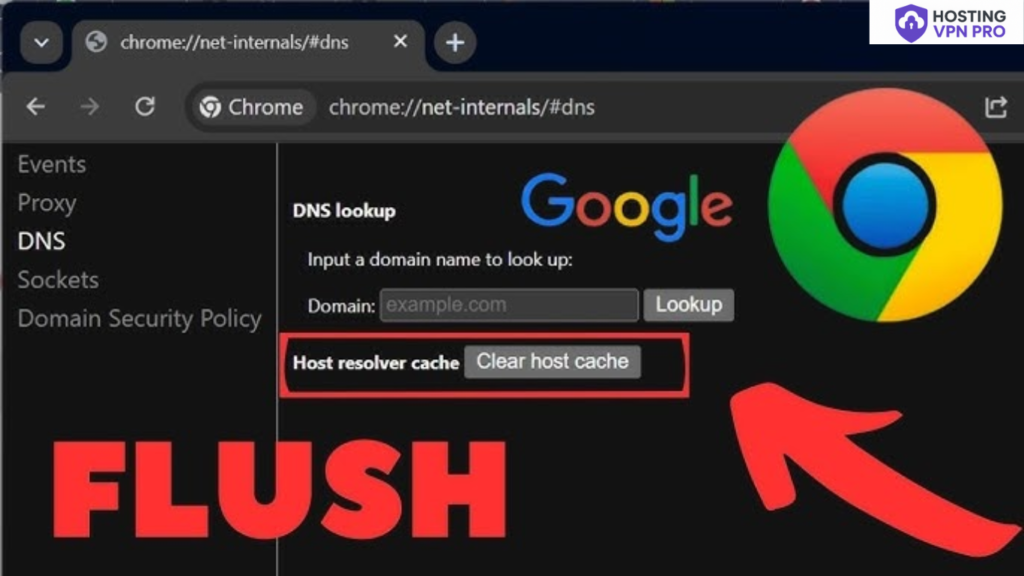

Have you ever opened a website but Chrome could not open it and showed an outdated page or refused to connect? If yes, The main reason behind it DNS cache. No worry it’s just a common issue which can be fixed simply. Chrome, like any other browser, adds DNS information to fasten up the browsing. But sometimes these cached records become outdated and corrupted and show error pages or website loading failed.
Google chrome has its own built in tool to handle this issue:chrome://net-internals/#dns,chrome.//net-internals/dns, chrome //net-internals/#dns, chrome //net-internals/#dns, or even chrome //net-internals/#dns mobile, there is a setting page where you can flush your DNS cache.
Table of Contents
The Role of DNS Cache
DNS cache is like a memory when you type a website it loads faster and records its data for next time so that it can load faster and you don’t have to wait. But over time these details or data becomes old and gets corrupted, causing websites to take time to open or sometimes leads to page error.
Example:
- First time-You type Amazon.com – Chrome looks up the IP – adds it in the DNS cache.
- Next time- Chrome uses the added IP – page loads faster.
Also Read- 5 Best Study Apps to Boost Students’ Focus and Productivity
Why Clearing DNS Cache Fixes Browsing Issues
DNS cache is made to speed up our browsing faster. DNS cache stores old or corrupt data which sometimes makes website load slower or sometimes fails. By clearing DNS cache can boost speed and lead faster. Doing this chrome delete old and corrupt data and store new and updated data from DNS servers, it is quite a simple method which can boost browsing speed and saves time, including website loading.
There are some conditions when using chrome.//net-internals/dns helps-
- Website not loading correctly – Even if it works on other devices.
- The website moved to new hosting – But your browser still points to the old server.
- Privacy reasons – Clearing cached records of websites you have browsed.
- Speed up– Sometimes cache can slow things down.
Step-by-Step Guide to Using chrome://net-internals/#dns on Desktop
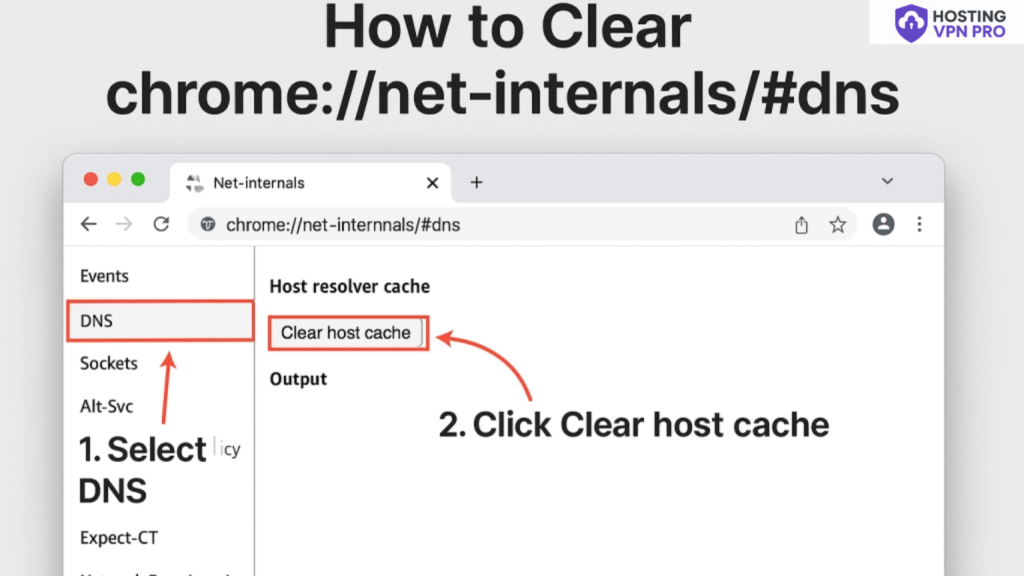
Flushing the DNS cache on the desktop is quite simple once you know where to find it.The hidden tool chrome://net-internals/#dns is made exactly for this work.open your Chrome browser on your computer screen. In the address bar, type chrome://net-internals/#dns (sometimes mistyped as chrome.//net-internals/dns or chrome //net-internals/#dns) and press Enter. This will take you to Chrome’s internal networking page.
Search for the button called “Clearhost cache”. Pressing this will instantly delete all the old and corrupt data stored in your browser. It will not delete your personal data, password etc. It only refreshes the background.
- Open Chrome on your computer.
- In the address bar, type- chrome://net-internals/#dns
- A hidden settings page will open. You’ll see DNS-related details like host resolver cache.
- Look for the option “Clear host cache.”
- Click the button.
Clearing DNS Cache in Chrome Mobile Browser
As our desktop, Chrome mobile also stores DNS cache to fasten up the browsing. But over time data can become outdated or corrupted leading to issues like page not loading website not working. By flushing DNS cache can enhance the speed and give you a smooth experience.
open the Chrome browser on your mobile device. In the address bar, type chrome://net-internals/#dns (often mistyped as chrome //net-internals/#dns or chrome //net-internals/#dns) and press enter. This will open a hidden settings page. Once open, look for the button labeled “Clear host cache.” press it, and Chrome will delete all the outdated DNS data stored on your phone.
Open the Chrome app on your Android or iOS Device.
- In the address bar, type- chrome://net-internals/#dns
- The internal DNS page will load .
- Find the Clear host cache button.
- Tap it once.
Clearing DNS Cache: Safe or Not?
Many users worry that flushing the DNS cache will delete their browsing history, saved passwords etc.Using chrome://net-internals/#dns clear is properly safe. DNS cache only stores the IP addresses of websites you have browsed to make loading faster.so clearing it will not delete any of your important information.
Upcoming Changes to DNS in Chrome
Future updates to Chrome will focus on smarter DNS handling. powered by AI and machine learning may allow Chrome to understand which websites you will visit next. DNS information for even faster browsing. Additionally, chrome://net-internals/#dns. helping users fix loading errors instantly.
Conclusion
Flushing DNS cache in chrome is simply an easy but powerful step to solve many problems with browsing issues. By clearing the DNS cache, browsing faster by storing IP addresses of websites you browsed. It deletes outdated and corrupted data which can cause problems, which is why knowing how to clear them is important. Tools like chrome.//net-internals/dns, chrome //net-internals/#dns, and chrome //net-internals/#dns make this process simple and fast.
FAQs
What is chrome://net-internals/#dns?
It’s a hidden Chrome settings page to view and clear DNS cache.
How do I clear DNS cache in Chrome?
Go to chrome://net-internals/#dns and click “Clear host cache.”
Does this delete my browsing history?
No, it only clears DNS records, not your history or passwords.
Can I use chrome //net-internals/#dns mobile?
Yes, open the same link in Chrome on your Android or iOS.
What is chrome.//net-internals/dns?
That’s a common typo; the correct URL is chrome://net-internals/#dns.
What does com.android.settings.intelligence have to do with this?
Nothing directly—this guide is only for Chrome’s DNS settings.
Is it safe to clear DNS cache?
Yes, completely safe and often fixes browsing issues.
What if clearing DNS doesn’t work?
Try also flushing sockets or clearing your system DNS cache.
Do I need to restart Chrome after clearing?
In most cases, yes—restart to ensure changes take effect.
How often should I clear DNS cache?
Only when you face issues like outdated sites, errors, or after changing networks.