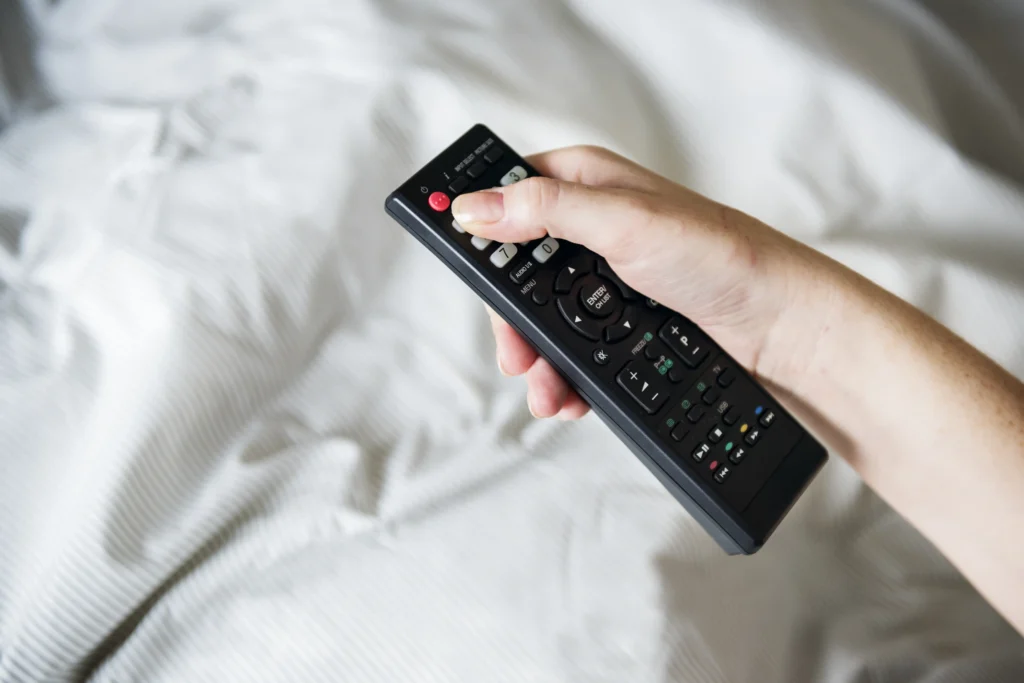

If you’ve ever gone through drawers trying to find the right remote for your TV, DVD player, or sound bar, you are not alone. Universal remotes like the GE Universal Remote are lifesavers for reducing hodgepodge and simplifying your living room experience.
You can easily program your GE remote without any codes, And this detailed guide from HostingVPNPro, You can easily setup your remote step by step.
Also Read:- What Is Android System Intelligence? Everything You Need To Know
Why Choose a GE Universal Remote?
Before going deep into remote setup, it is essential to know why this remote is so popular:
- Affordable and reliable
- Compatible with multiple devices
- Easy to set up
- Durability
Understanding Code vs. No-Code Programming
Many universal remotes use numeric codes to connect with your device, These codes sometimes correspond to specific models but finding the right code is quite tough.
That’s why, no code method comes into light.GE universal remotes have an auto code search function that goes through device signals until it gets connected.It auto connects itself without typing codes manually.
Also Read:- Step-by-Step Guide: Accessing DNS History on Chrome Mobile
Step-by-Step Guide: How to Program a GE Universal Remote Without Codes
- Turn on the device you want to control
Make sure your TV, DVD player, or other device is powered on before you begin. - Insert fresh batteries
Weak batteries can interfere with programming. Always install new batteries in the remote before setup. - Enter setup mode
- Press and hold the Setup button on the GE remote until the red indicator light stays on.
- If your remote doesn’t have a Setup button, press and hold the device button (TV, DVD, etc.) until the indicator light turns on.
- Select the device type
Press the button for the type of device you’re pairing (TV, DVD, CBL, AUX). The red light will blink once and remain illuminated. - Start the auto code search
- Point the remote at the device.
- Press and release the Power button repeatedly. The remote will cycle through codes automatically.
- When your device turns off, it means the correct code has been found.
Also Read:- What Are The Best Apps Like Afterpay For Easy Payments?
HostingVPNPro’s Tech Insight
At HostingVPNPro, where we find tech solutions for everyday life, we have seen countless users frustrated by remote control setups. The GE Universal Remote stands out because it gives flexibility—both with manual code entry and the seamless no-code method. For anyone tired of juggling multiple remotes, this device is a game-changer.
Final Thought
At HostingVPNPro, we suggest the GE Universal Remote to anyone who wants a trusted, budget-friendly way to simplify their entertainment system. Once you try the no-code method, you’ll wonder why you ever stressed over remote codes in the first place.
FAQ’s
Can I program a GE universal remote without entering codes?
Yes, GE remotes have an auto-code search feature that lets you program the remote without manually entering codes.
How do I start the auto-code search method?
Turn on your device, press and hold the Setup button until the indicator light stays on, select the device button (like TV), then press the Power button repeatedly until the device turns off.
How do I save the code after my device responds?
After the device shuts off, press the Enter or OK button immediately to lock in the code.
Why isn’t my GE universal remote responding?
Check the batteries, ensure the remote is aimed at the device, and reprogram it using the no-code method if necessary.
Can one GE universal remote control multiple devices?
Yes, most models allow programming for up to 4 devices, such as TV, DVD, soundbar, and cable box.
How long does it take to program using the no-code method?
It generally takes a few minutes, as the remote cycles through hundreds of potential codes.
Do GE universal remotes work with all TV brands?
They are compatible with most popular TVs and audio/video equipment, but some very new or rare brands may not work.
Can I use the no-code method for a soundbar or streaming device?
Yes, just select the AUX button and follow the same process until the device responds.
What should I do if I can’t finish programming in one go?
Restart the process from the beginning, as incomplete steps won’t save properly.
Which method is better—manual code entry or no-code setup?
Both methods work, but the no-code setup is easier if you don’t have the device code list handy.