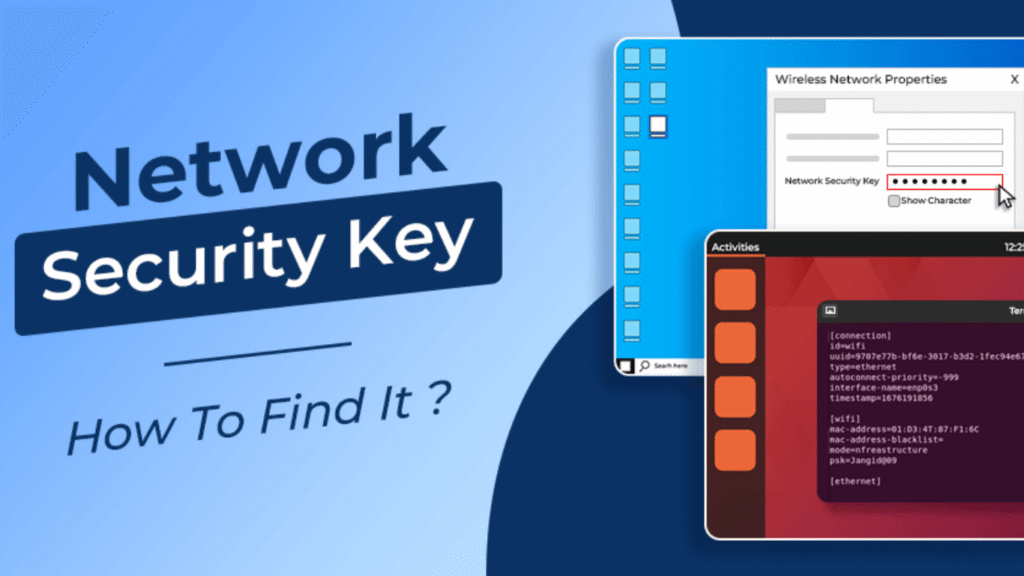

In today’s digitally connected world, network security plays a key role in protecting your personal information, wifi and online identity. If you are connecting your laptop to home wifi or securing your business network, knowing how to find and manage your network security key is important.
Many people wonder “What is a network security key?” The solution is quite simple, but it depends whether you are using Windows, macSO or Android.
In this article by hostingVPNpro, we will learn What a network security key is. How to find it on device.
Table of Contents
What Does a Network Security Key Mean?
A network security key is your Wi-Fi password, the digital code that connects your device to a wireless network.
- Wi-Fi password
- Wireless security key
- WPA key
Also Read– Exploring Information Technology: What You Need To Know
Understanding the Need for Network Security
Strong network security secures your-
- Personal data
- Business files and communications
- Smart devices from hackers
- Internet bandwidth from unwanted users
Many network security providers provide advanced fireballs to small businesses, VPNs, and tools to secure your data to cyber frauds, but you need a network security key.
Network Security Key Categories
WEP (Wired Equivalent Privacy)
- Traditional encryption method.
- Outdated and insecure.
- Easy to hack.
WPA (Wi-Fi Protected Access)
- Updated version of WEP.
- Bit vulnerable.
WPA2 (Wi-Fi Protected Access 2)
- The most basic and secure Wi-Fi encryption..
- Used by all users.
WPA3
- Providing stronger encryption and protection against cyber and malware attacks.
- Available in modern routers and devices.
Finding Your Network Security Key Across All Devices
Finding Network Security Key on Windows
- Click on the Wi-Fi icon.
- Select Network & Internet Settings.
- Click on Status- Network and Sharing Center.
- Select your Wi-Fi name.
- Choose Wireless Properties- Security tab.
- Check the box next to Show characters.
Finding Network Security Key on Mac
- Open Spotlight Search and type Keychain Access.
- Go to System- Passwords.
- Click your Wi-Fi network name.
- Select Show password.
Finding Network Security Key on Android
- Go to Settings – Network & Internet – Wi-Fi.
- Click on your connected Wi-Fi network.
- Tap on Share.
- Authenticate with fingerprint or PIN.
- You will get a QR code – the Wi-Fi password is seen below.
Finding Network Security Key on iPhone
- Go to Settings – Wi-Fi.
- Click on (i) icon next to the connected network.
- An option pops up called Password.
- Authenticate with Face ID or Touch ID.
Finding Network Security Key on Your Router
- Open a browser and type your router’s IP address.
- Log in with your admin credentials.
- Go to Wireless Settings.
- network security key will be listed there.
What to Do When You Lose Your Network Security Key
- Check the router admin page.
- Call your internet provider for help.
- Reset your router.
Effective Network Security Techniques
- Change your router password from time to time.
- Use WPA2 or WPA3 encryption.
- Avoid public Wi-Fi.
- Use VPNs.
- Keep router firmware up to date.
- Disable WPS
- Monitor connected devices.
Importance of Network Security for Small Businesses
- Managed firewalls
- VPN configuration
- Secure cloud access
- Real time threat alert
Everyday Cyber Mistakes That Put You at Risk
- Using 12345678 or password as your key.
- Sharing your key publicly.
- Avoiding updates.
- Not using a VPN.
hostingVPNpro Research Corner
We firmly think that security starts at the basics level- many people uses an antivirus but they don’t focus on the thing called network security key which is your first wall of defence. By following the above knowledge, you can not only find your key but also tighten your network against digital frauds.
FAQs
Q1. What is a network security key?
It’s your Wi-Fi password that helps devices connect securely to your wireless network.
Q2. Where can I find my network security key?
You can find it on your router, in device settings, or through your Wi-Fi’s properties.
Q3. Is a network security key the same as a password?
Yes, both terms refer to the same thing — your Wi-Fi password.
Q4. What if I forgot my network security key?
Check your router label or reset your router to create a new one.
Q5. Is WPA2 secure enough?
Yes, WPA2 is very secure, but WPA3 is even better if your device supports it.
Q6. Can hackers steal my Wi-Fi password?
Yes, if your network is open or uses weak encryption. Always use strong keys and secure encryption.
Q7. What is network security for small businesses?
It involves using VPNs, firewalls, and managed security services to protect data and devices.
Q8. How can I see my Wi-Fi password on Windows?
Through Network & Sharing Center > Wireless Properties > Security tab > Show Characters.
Q9. What’s the safest Wi-Fi encryption method?
WPA3 is the safest and most modern encryption standard.
Q10. Why should I change my network security key regularly?
To prevent unauthorized access and enhance your overall network security.


